Remote IT Support & Windows Installation properly configured
Optimization for speed, stability and security. Not just installation!
We remove everything that is unnecessary and configure the system to remain clean, stable and reliable over time. Windows without compromises, tailored to your real needs and how you actually use your system.
General IT support for common or complex issues - drivers, peripherals, applications or games that do not work correctly, system errors or software incompatibilities.
IT Services for PC and laptop
Remote IT support and Windows services: from fixing existing issues to complete installation and configuration. Punctual interventions according to your needs.
Remote IT Support, system fix
Windows is already installed, but the system is running slowly, unstable, or various problems occured in daily use.
Is done remotely or locally.
- Windows diagnostic and troubleshooting
- Clean up unnecessary apps and bloatware
- Startup and Windows services optimization
- Privacy configuration and tracking reduction
- Fix drivers, peripherals, and applications
- Networks and Wi-Fi router configurations
- Optimizations for applications or gaming
Windows installation and configuration
Recommended when the system is too loaded or unstable to be optimized effectively.
Clean installation, correctly configured, without unnecessary applications or compromises.
Remote with user participation.
- Windows 11 Pro or Home Install
- Updates and drivers correctly configured
- Common applications installed and configured
- Complete debloat and clean initial setup
- Network configuration and power settings
- Optimized for stability and long-term use
When to call me (when not to)
Not every issue requires professional intervention. Some problems can be solved on your own with a bit of focus, while others come down to a simple restart.
✅ You should contact me if:
- You want a clean Windows installation anyway
- Slow or unstable PC and the cause is unclear
- Persistent network or connectivity issues
- Don’t have time to test and experiment
- New computer and want a proper setup from the start
- Face more complex software issues (Office, Adobe, etc.)
- You're a competitive gamer (FPS, latency matter)
💡 You can handle it yourself if:
- Comfortable configuring BIOS and system settings
- You have experience with operating systems
- PC works well and you only want minor adjustments
- The issue is simple (e.g. updating a GPU driver)
- You have time for testing and documentation
- Enjoy learning through experimentation
If you want to try it yourself, you’ll find a step-by-step DIY Windows installation guide below.
Not sure if you actually need help? Sometimes the issue comes down to a simple setting. We can clarify it in under 10 minutes with a quick call, without unnecessary interventions or on-site visits.
Pricing
Prices are indicative and may vary depending on complexity or specific requirements.
- Windows errors and common software issues
- Drivers, peripherals and system settings
- Applications that fail or crash
- Maintenance of existing systems
- Basic configuration (browser, accounts, backups)
- System cleanup (unnecessary apps, bloatware)
- Startup and services properly configured
- Privacy and security settings
- Driver fix and stable configuration
- Everyday use optimizations
- Clean Windows 11 installation
- Updates and drivers properly configured
- Complete initial system setup
- Common applications install
- Basic data backup (if needed)
Windows or Office license: +50 RON
External backup (if required): +50 RON
Frequently Asked Questions
Answers to the most common questions about my services and workflow.
- Remote: available worldwide.
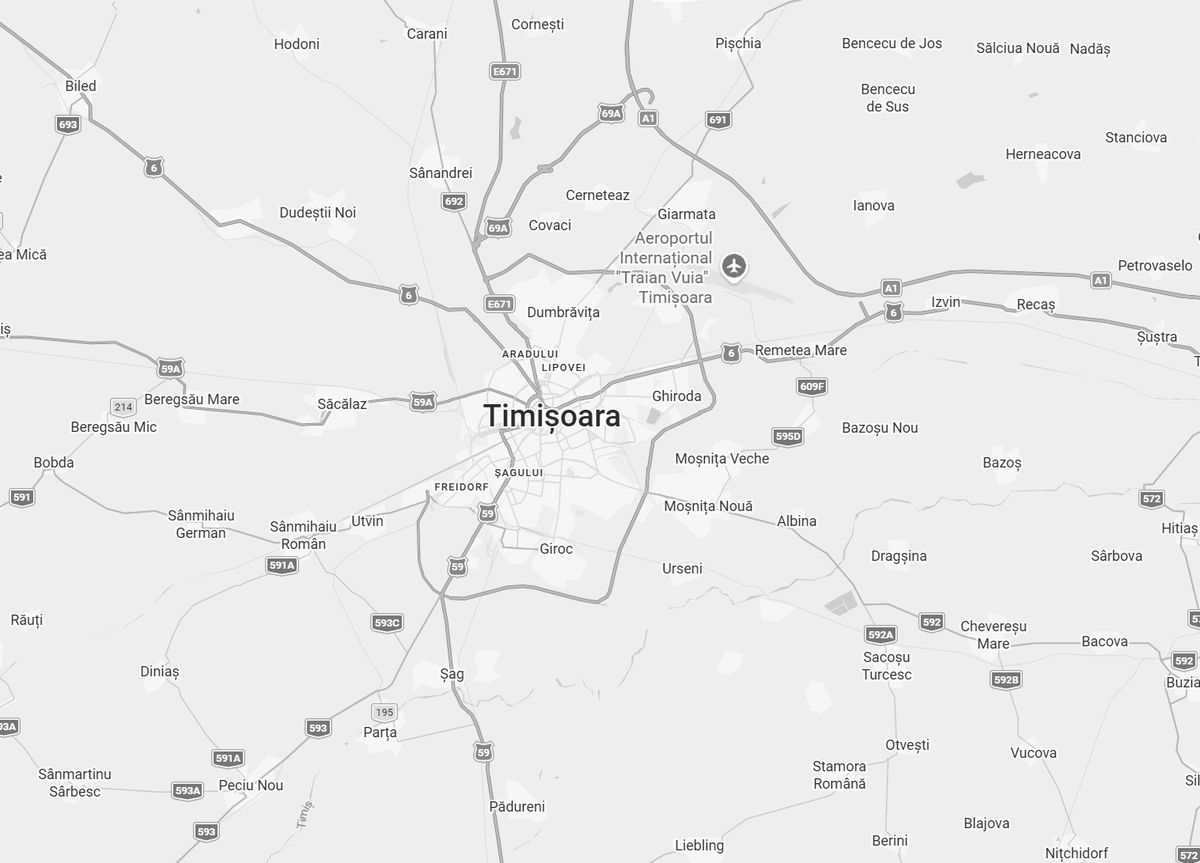
- Local: Timisoara and the metropolitan area.
- Travel to other locations: on request and for an additional fee.
- Simple fixes: 30–60 minutes.
- Windows optimization: 60–90 minutes.
- Windows installation: 60–120 minutes.
- Exact time depends on the system and the issue.
- The initial steps up to the first full boot are done by the user with guidance.
- The process can take longer than a standard session.
- We confirm in advance whether remote installation is suitable and not overly complicated.
- Yes. Guidance is part of the service.
- The main difference is how fast and smooth the system feels.
- If you’re not waiting on your PC and it works well for what you do, you may not need it.
- Non-optimized Windows: unnecessary apps/services and excessive data collection.
- Optimized Windows: cleaner, more predictable system with lower resource usage.
- Yes.
- Custom Windows images are genuine, with the latest updates and certain modules disabled.
- Yes.
- Payment is made at the end, after everything is installed and/or configured.
- Cash or bank transfer.
- No deposit for typical jobs.
Windows Installation – DIY Guide
A simplified guide for a clean Windows installation.
Prepare a USB drive & download Windows
You will need:
- USB drive of at least 8GB (it will be erased)
- Stable internet connection
- Time and attention to follow the steps
- A working PC to prepare the USB
Download: Rufus (rufus.ie) and the official Windows 11 ISO from Microsoft.
Create a bootable USB with Rufus
In Rufus configure:
- Device: your USB drive
- Boot selection: Windows ISO
- Partition scheme:
GPT - Target system:
UEFI
Start the process by clicking START. The USB will be prepared automatically.
Backup (essential)
Create a backup before continuing:
- Documents, photos and important files
- Login credentials and software licenses
- Bookmarks and useful settings
- Any data you don’t want to lose
Important: A clean installation will erase data on the selected drive.
Boot from USB
Start the installation:
- Restart the PC with the USB drive connected
- Enter Boot Menu or BIOS (F12 / F2 / Del)
- Select the USB device
- Confirm booting from USB
Windows Setup should start automatically.
Install Windows
In Windows Setup:
- Select language and keyboard layout
- Click Install now
- Choose
Custom (advanced) - Select the correct drive
Attention: if you have multiple drives, double-check your selection.
Final setup
After installation:
- Complete the initial setup
- Install essential drivers
- Run Windows Update
- Install your required applications
Recommended: restart the PC after drivers and again after updates.
Windows Issues & Tips
Common symptoms you can often fix quickly, plus practical installation tips.
- Disconnect from the internet until the installation is finished. Connect only after the first manual restart.
- Time and currency format: choose
English (World)– you can change it later in Settings. - After installation: before connecting to the internet: Restart. Motherboard drivers: Restart. GPU drivers: Restart. Windows Updates: Restart.
- Yes. When Windows setup asks for a Microsoft account, press Shift+F10 to open Command Prompt.
- Type:
start ms-cxh:localonlyand press Enter. - Windows will switch to a local account flow.
- Home – the standard edition, enough for most everyday users.
- Pro (recommended) – adds more advanced features and supports more memory/advanced business options.
- N – does not include certain media apps (Camera, Photos, Media Player) by default; they can be added later.
- Education – Pro-based edition with education-focused features.
- Windows automatically creates 2–3 small partitions (16 MB, 200 MB, and sometimes ~700 MB).
- They are required for normal system operation — don’t delete them.
- GPU: install from the manufacturer (NVIDIA / AMD / Intel) — latest versions.
- Other drivers: it depends; if issues appear, you may need to test different versions.
- If a driver causes problems, start by testing the version from the manufacturer’s website.
- Restart.
- Startup: Settings → Apps → Startup → disable what you don’t use.
- Task Manager: Ctrl+Shift+Esc → Processes → sort by CPU or Memory and look for what’s consuming resources.
- Disk: if you’re on an HDD, moving to an SSD is the biggest upgrade.
- Check temperatures and review Event Viewer messages.
- Write down the error code (e.g., DRIVER_IRQL_NOT_LESS_OR_EQUAL) and search it together with your laptop/motherboard/GPU model.
Contact
Phone / WhatsApp
+40 731 511 622Locație
Timișoara & metropolitan area
Remote: Worldwide